
The Time Off Management modules helps you keep track of employees time off.
As an admin you can setup accruals, carry forwards, and other rules. Separate rules can be setup for each Employee Type. Balances are automatically adjusted and optionally available to the employee.
Setup steps
- Setup Time Off Rules
- Assign Rules to Employees
- Run Reports to see Time Off balances
- Give Employees access to Time Off Report
Setup Overtime Rules
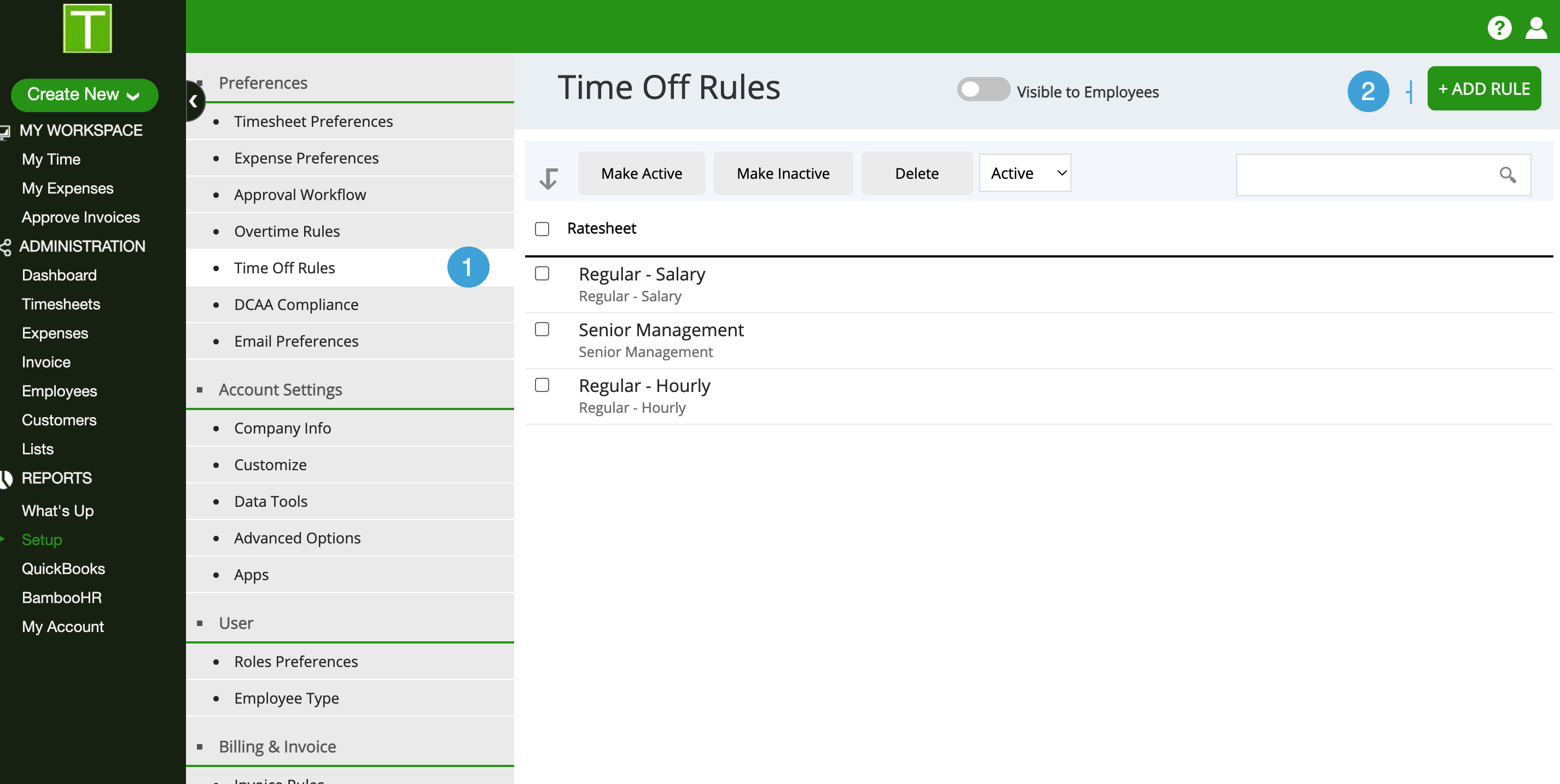
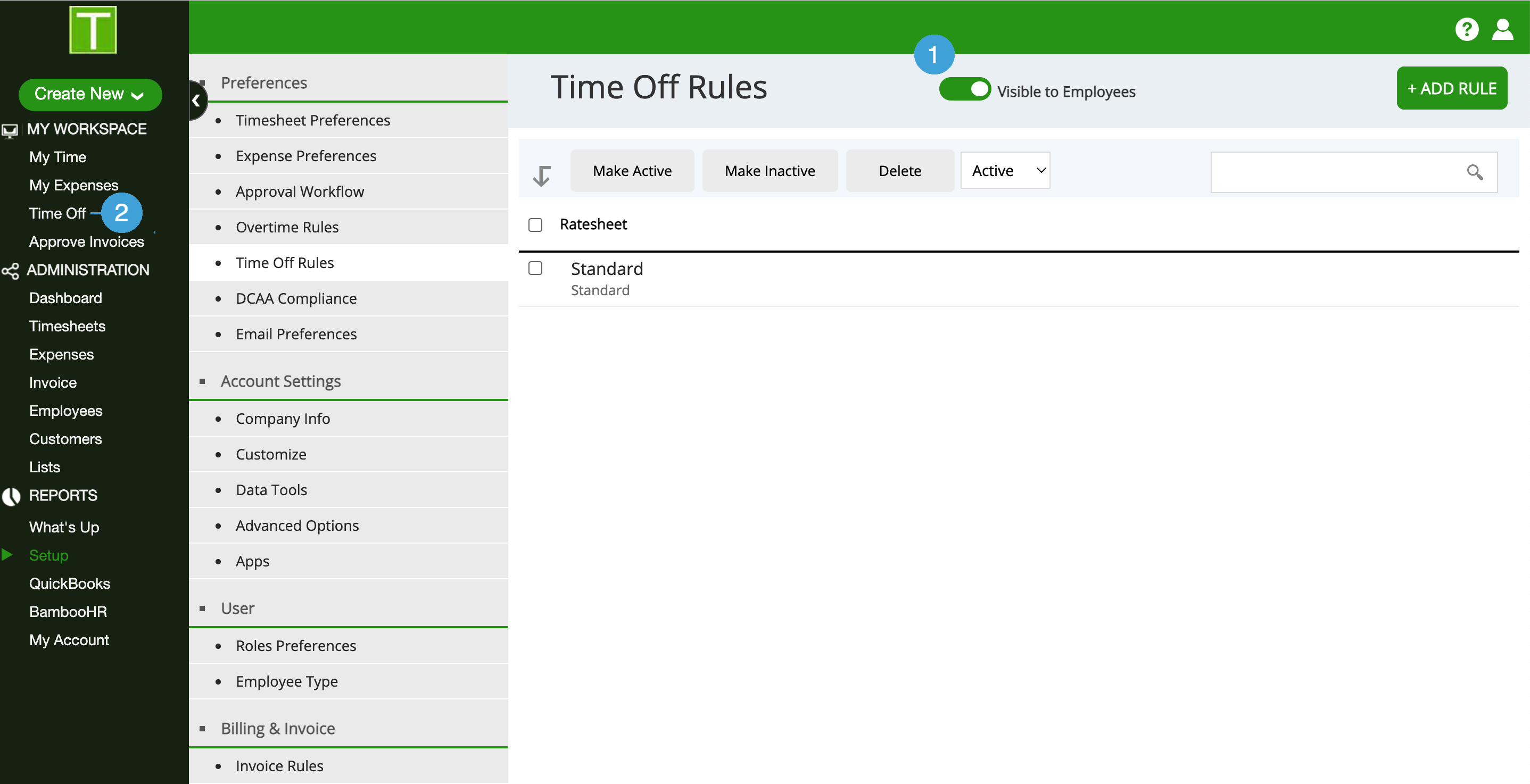
- Go to Setup | Time Off Rules
- Click on + Add Rules
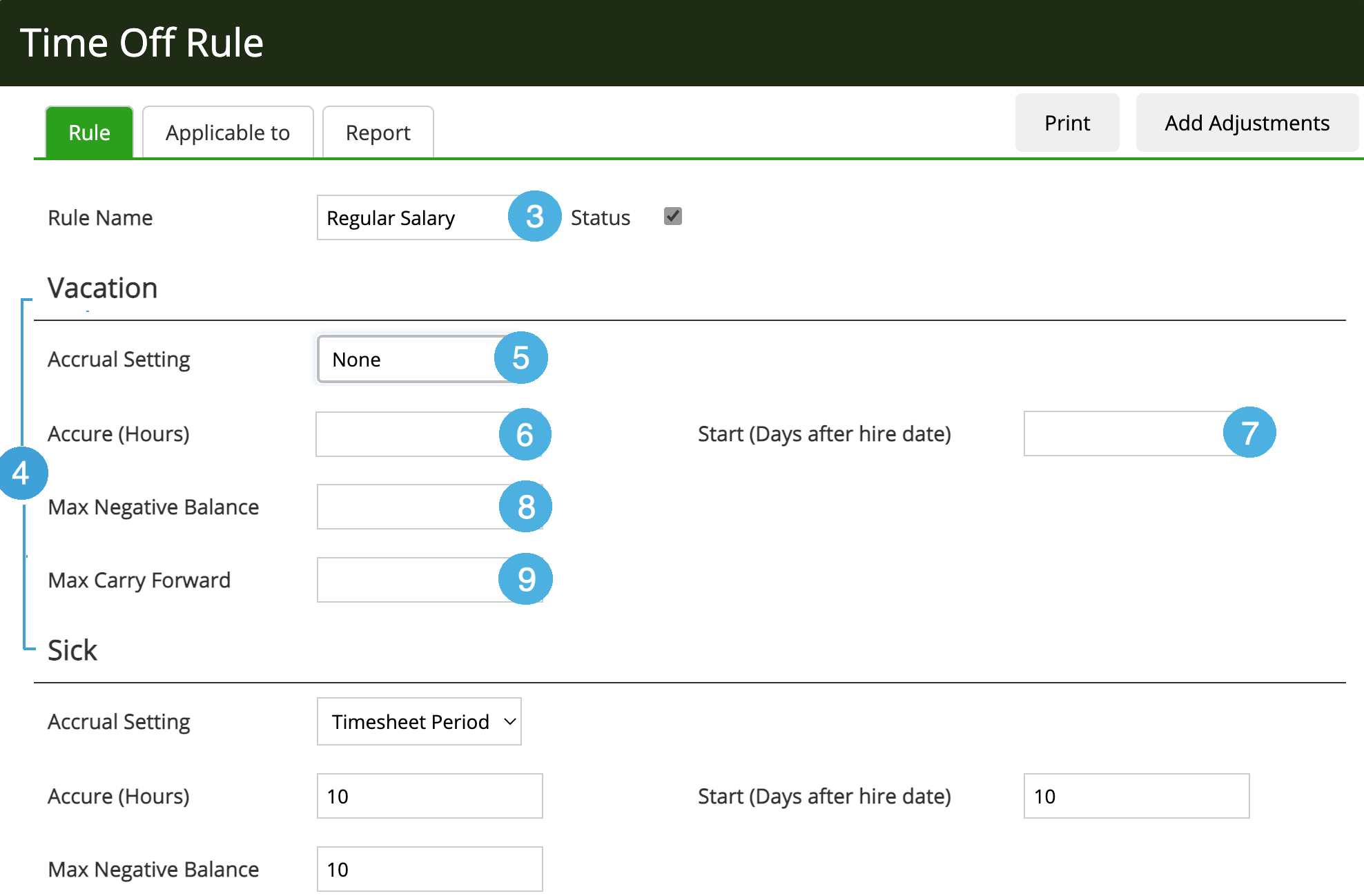
- Enter a rule name, if you have different rules for different employees then use a meaningful name to identify this, for example - Senior Management, Regular Salary. You can change the name anytime.
- In the next section you will see different sections for each Time Off type defined in the system. You can setup different rules for each Time Off type.
- Select the Accrual Settings, this is the frequency with which employee will accrue time off hours
-
- Annually - Hours allocated to the employee at the beginning of the calendar year
- Monthly - Hours allocated at the end of each calendar month
- Timesheet Period - Hours allocated at the end of the timesheet period (weekly, bi-weekly, semi-monthly)
-
- Enter the Accrue (Hours), these are the hours employee accrue based on Accrual Settings
- Enter Start (Days after hire date), enter 0 if employee starts accruing hours as soon as they start work, or if you have a waiting period, then enter the number of days here.
- Enter Max Negative Balance if you allow employees to avail time off before it is accrued. This balance sets the limit of how many hours an employee can avail before they are accrued.
- Enter Max Carry Forward if you allow unused hours to be carried forward to the next year.
- Click on Save button to save the Rule
Assign Rules to Employees
Once you setup the rules, you can assign them to employees based on their employee types.
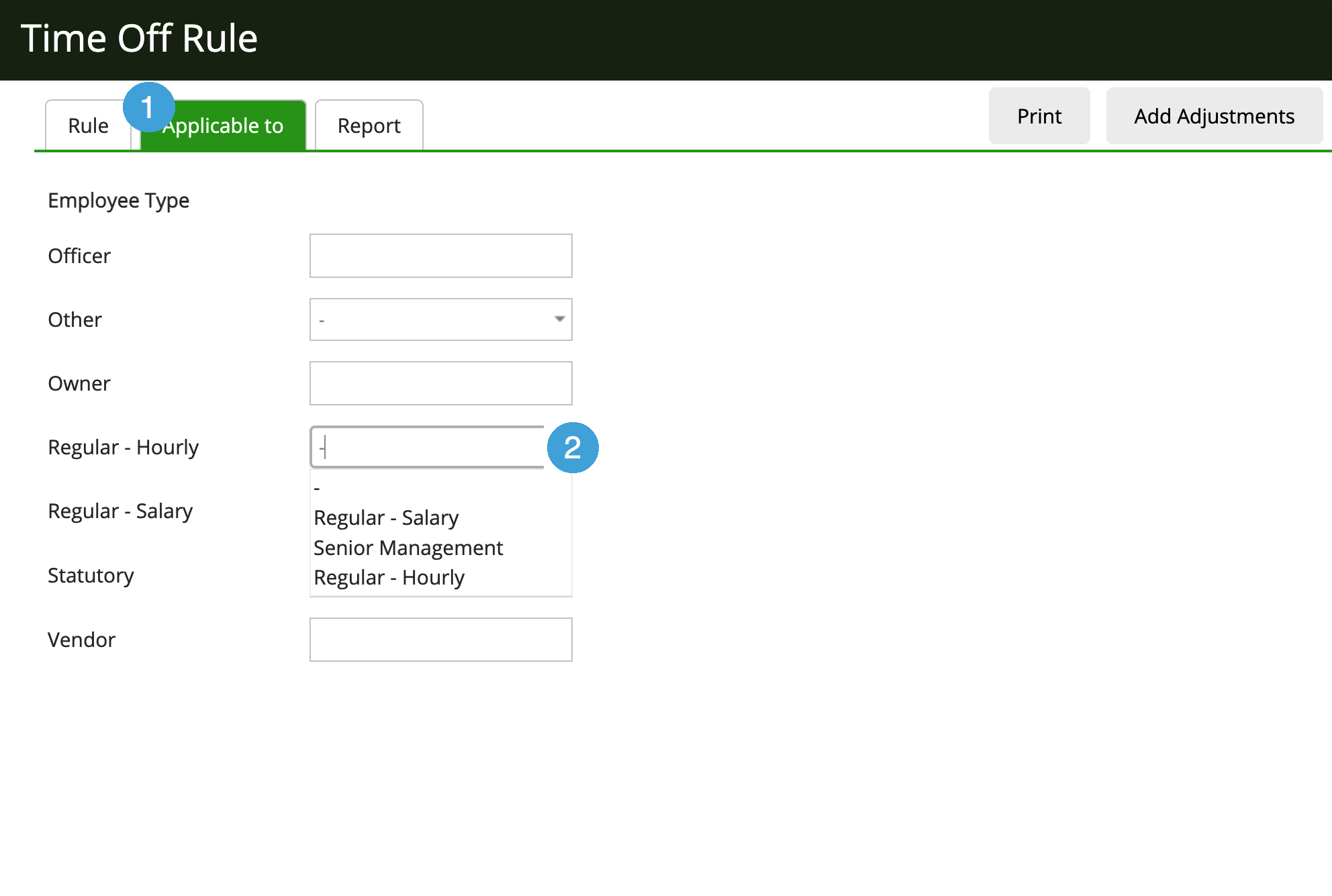
- Click on the new rule you created above to open the Time Off Rules page and then click on Applicable to tab
- For each Employee Type select the Time Off rule to apply. If you have only one rule, apply that to every type. Once you select the Rule to apply, the system will ask you to enter the Allocation Start Date, we recommend you enter Jan 1st of current year, or if you want to start this from the previous year, enter Jan 1st of previous year.
Run Reports to see Time Off balances
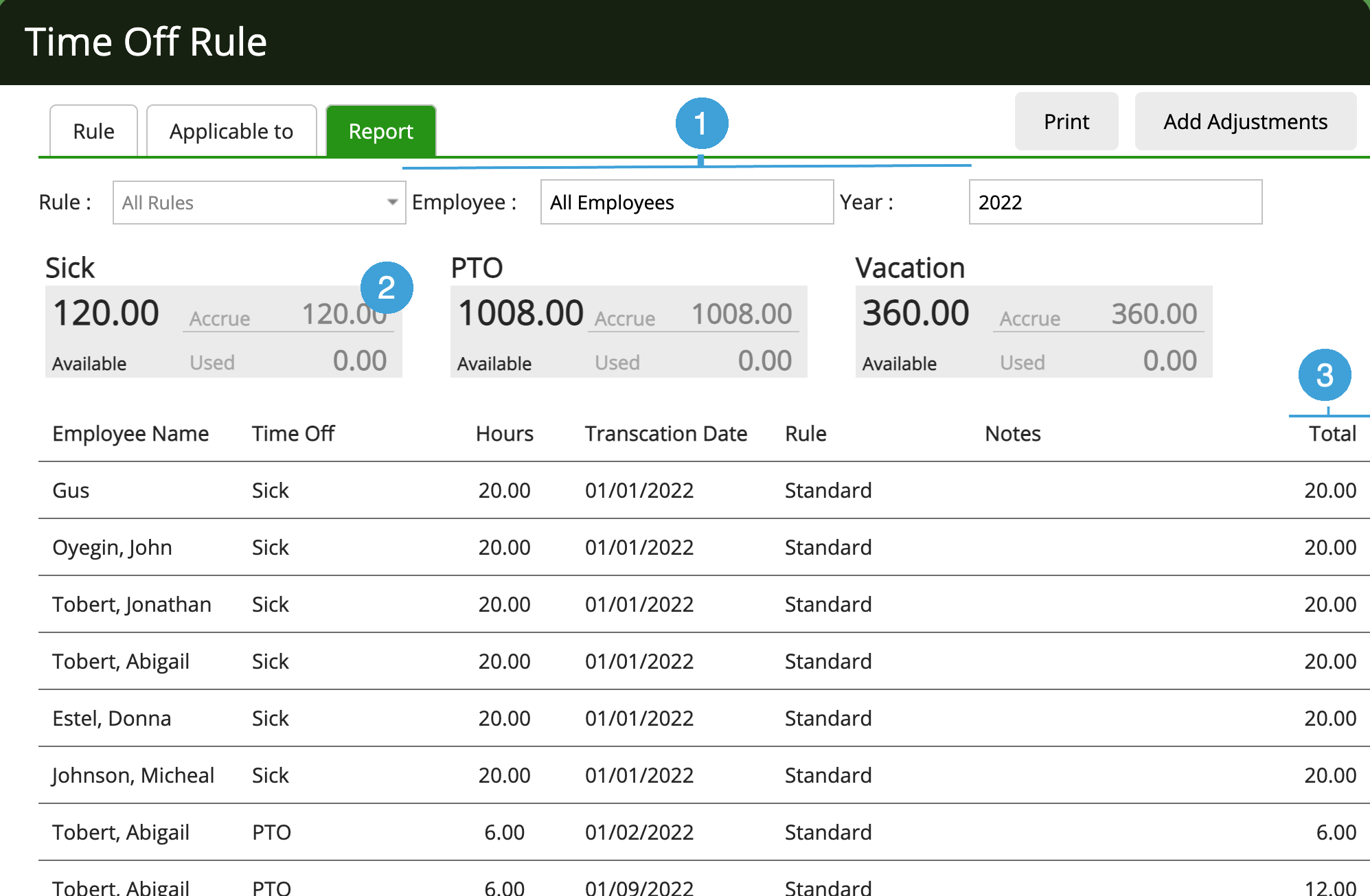
Click on the Report tab
- You can filter the report by Rule, Employee, and Year
- You can also filter the report by Time Off type by clicking on the box
- The Total column gives you the running total of Time Offs
Give Employees access to Time Off Report
Once you are satisfied with the setup, you can give employees access to the Time Off tab where they can see their Time Off accruals and balances.
- Turn on the Visible to Employees button
- Click on Time Off tab in My Workspace section to see your time off information. Each employee can see only their time off information.
0 Comments