
TimeRewards lets you set up multiple overtime rules, and then apply the rule to different Employee Types. For example you may have a standard rule for everyone, a rule specific to employees working in California, or different provinces of Canada. First you have to set up the rules and then assign the rule to an employee type.
Set up over time rules
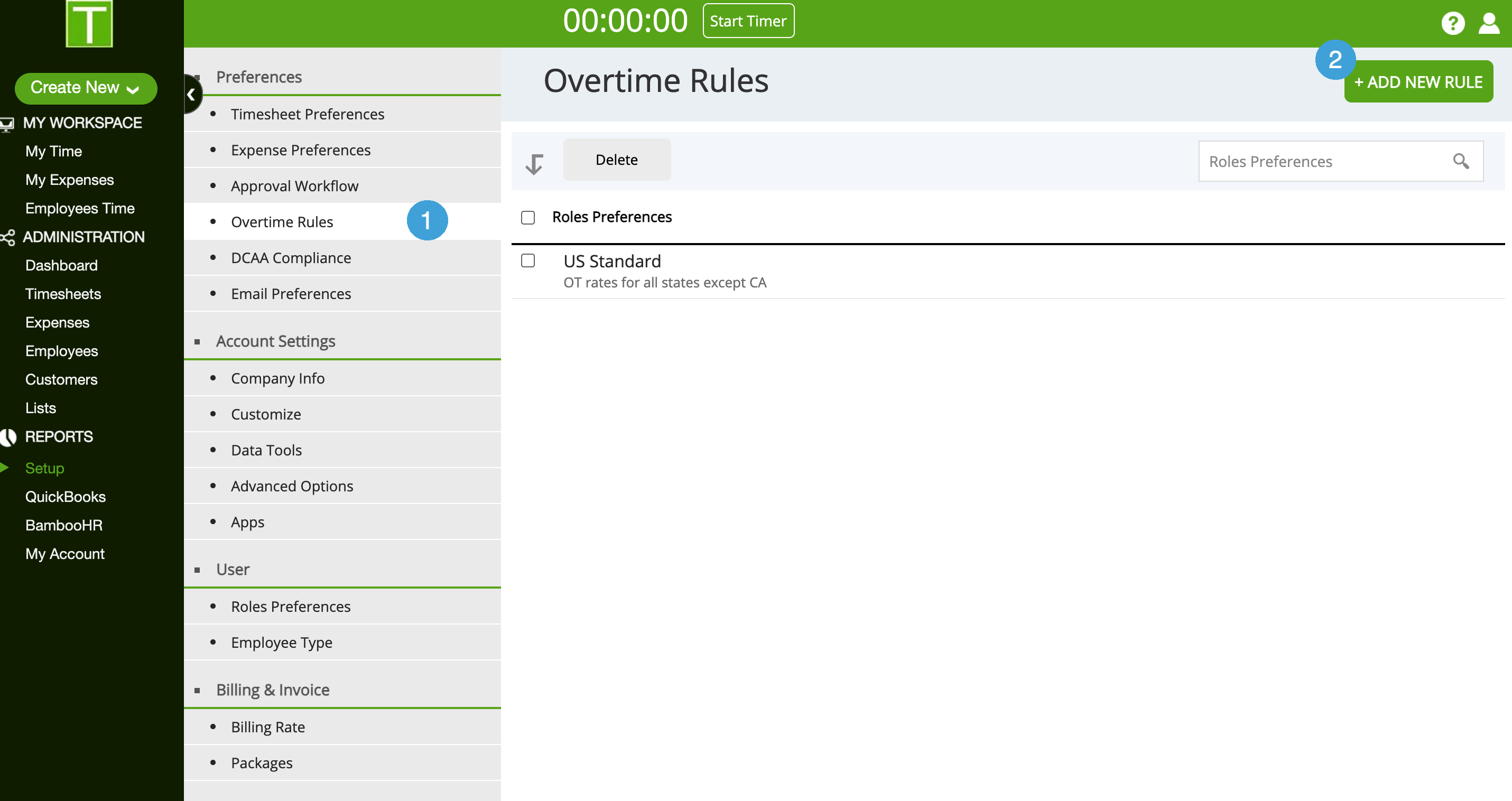
- Go to Setup | Overtime Rules
- Click on Add New Rule
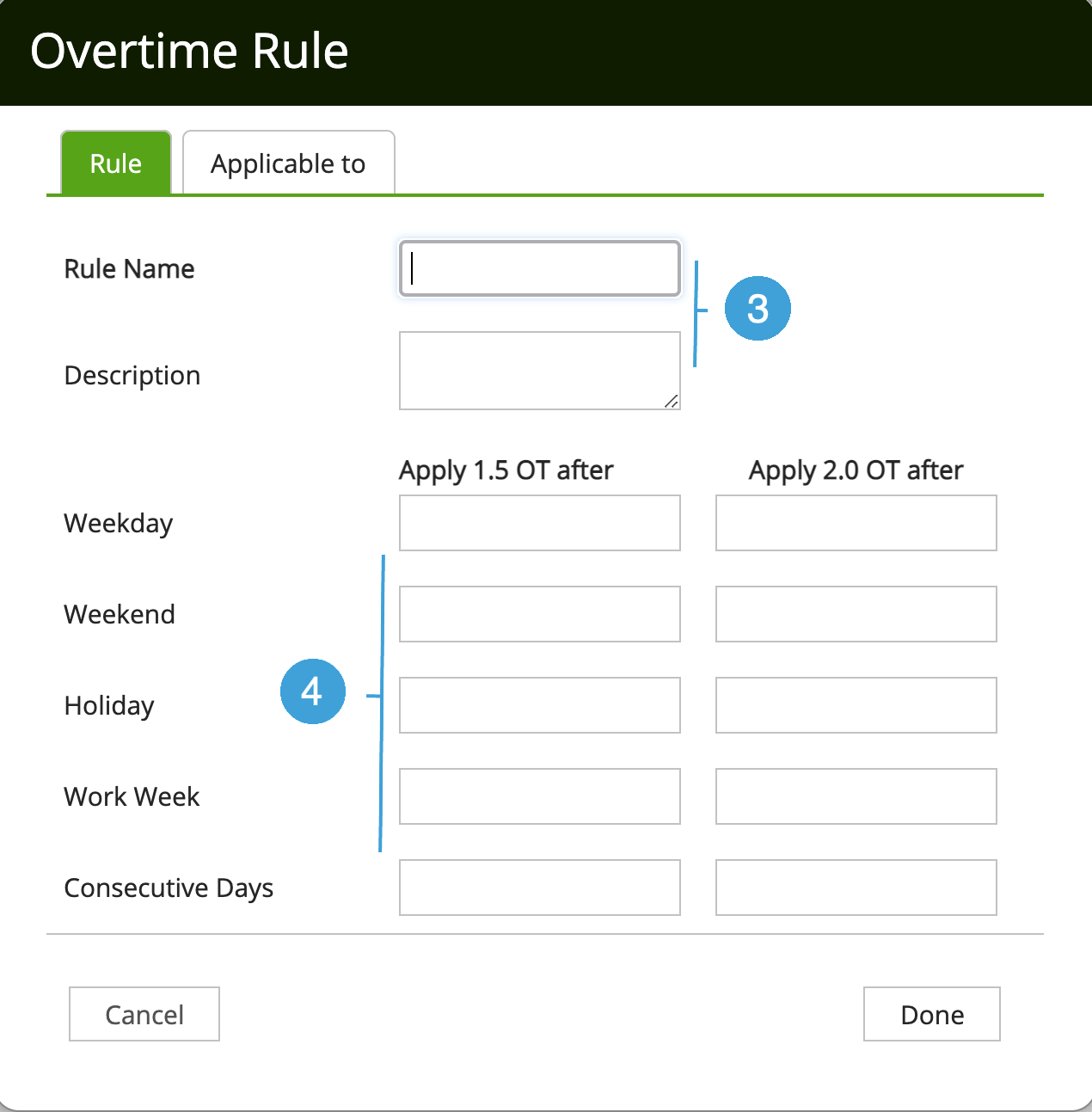
- Give the rule a name and a short description. For example, Rule Name - US Standard, Description - OT rules for all states except CA
- Enter the hours threshold for each row. For example, Weekday (Apply 1.5 OT after) - enter 8 hours, and for (Apply 2.0 OT after) - enter 12 hours. This means if an employee works over 8 hours a day, all hours over 8 hrs will be considered 1.5OT, and if they work over 12 hours, all hours over 12 hrs will be considered 2.0 OT. Leave the fields blank if the OT thresholds do not apply to the rule.
Apply rules to employee types
5. Next, Click on the Applicable to tab
6. For each employee type, select the Rule that applies to that type
7. Click Done to complete the set up
Note: To set up employee types, go to Setup | Employee Type. If you are a QuickBooks users, you can setup the Employee Types in QuickBooks and sync them over to TimeRewards.
Note: To assign an employee to a Employee Type, go to the employee record in TimeRewards and look for the Employee Type drop down in the

0 Comments